Link in bio for streamers: show you’re live on Twitch, YouTube and Kick
A link in bio for streamers that shows you’re live by itself: what to put on it for Twitch, YouTube and Kick, and a free setup in five minutes.
By Dznir
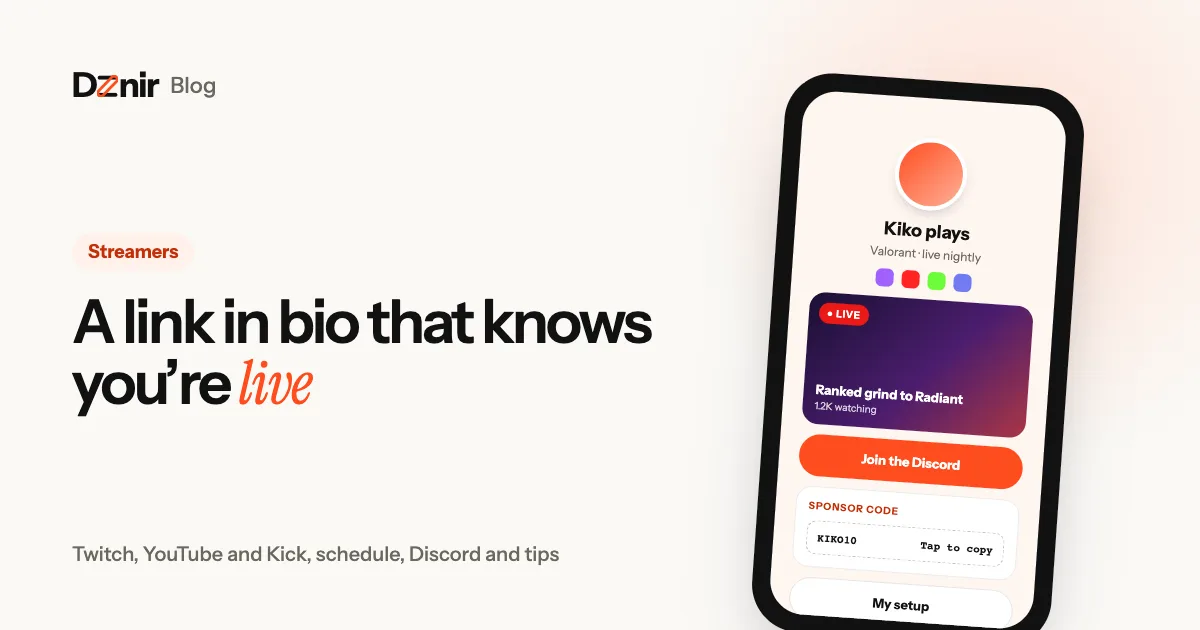
Someone watches one of your clips, likes it and taps the link in your bio. In the next five seconds they want three answers: are you live right now, when is the next stream, and where do I follow you? If your link in bio is a plain list of buttons, they have to work all of that out themselves. Most won’t.
A link in bio built for streamers answers those questions on its own. It shows your stream while you’re live, tells people when you’re on next while you’re not, and keeps your Discord, clips, tips and sponsor codes one tap away. Here’s what to put on it, in what order, and how to set one up for free in five minutes, whether you stream on Twitch, YouTube, Kick or all three.
What a streamer’s link in bio needs
A creator who posts videos needs a page of links. A streamer needs a page that knows what time it is. Viewers arrive from a clip, a Short, a Reel or a tweet, often hours after it was posted, and the page has to make sense either way. A good one covers eight things:
- Live status. A clear “Live now” while you’re streaming, so a new viewer can jump straight in.
- Your schedule. When you stream next, with a time zone, for everyone who arrives while you’re offline.
- Where you stream. Twitch, YouTube, Kick, or the one you stream on most, at the top.
- Your community. Discord first, then Instagram, X, TikTok, wherever your viewers hang out between streams.
- Clips and VODs. Your best moment, playable on the page, for people who missed the stream.
- Support. Tips, memberships, merch.
- Sponsors and gear. Discount codes and the “what’s your setup?” list you get asked for in every chat.
- Business contact. A clear way for brands to reach you, ideally with your numbers attached.
You don’t need all eight on day one. Live status, schedule, where you stream and Discord are the core. Add the rest as you grow.
Show you’re live, automatically
The most useful thing a streamer’s link in bio can do is notice when you go live, without you touching it. Editing your page every time you start a stream doesn’t last a week.
On Dznir, that’s the Live now block. You paste the link to your channel (twitch.tv/you, youtube.com/@you or kick.com/you), write when you usually stream, and the block does the rest:
- While you’re live, it shows your stream with its picture, and one tap takes the viewer straight to it.
- While you’re offline, it shows your channel (banner, profile picture and name) with “Next stream” and the schedule you wrote, like “Mon–Fri · 9 PM IST”.
- If you’d rather hide it offline, switch on “Only show while I’m live” and it appears only during streams.
Dznir checks your channel every couple of minutes, and again when someone opens your page, so people who arrive right after you go live see it. It works for YouTube, Twitch and Kick with no keys or accounts to connect, and it’s on every plan, including Free. On Pro, a YouTube Live banner also appears across the top of your page while you’re live on YouTube.
That one block changes what your bio link means. Your clips, Shorts and posts all point at the same address, and that address always tells the truth about whether you’re on.
Make your schedule impossible to miss
A schedule turns a one-time viewer into a regular. Write it the way your viewers think about time:
- Days and a time, with a time zone: “Mon–Fri · 9 PM IST”. If a lot of your viewers are abroad, add a second one: “9 PM IST · 3:30 PM UK”.
- Keep it short. The Live now block’s schedule line is made for one line, not a timetable.
- Say what you stream in your bio line (“Valorant · live nightly”), so people know what they’re coming back for.
For one-off events, like a 24-hour stream, a tournament or a launch night, Pro adds two tools. A countdown block counts down to the start, and scheduled blocks show a block only between two dates, so your “Giveaway ends Sunday” button appears on Friday and disappears on its own on Monday.
Streaming on more than one platform
Lots of streamers are on two or three platforms: Twitch for the main stream, YouTube for VODs and Shorts, Kick for a second audience. Your link in bio is where they all meet, so set it up in this order:
- Your main platform first. Put the Live now block for the channel where you stream most at the top.
- The rest as social icons. Twitch, YouTube, Kick, Discord, Instagram, X and TikTok all have icons. The Free plan has 5, Pro has as many as you like, and Pro can show two YouTube channels or a second Instagram if you have a main and a clips account.
- One button per extra stream if you really stream on several platforms at once: “Also live on Kick”.
Don’t put six equal buttons at the top. A viewer who has to choose between six links usually picks none.
Clips, VODs and highlights
Most people find streamers through short clips, and most of them arrive while you’re offline. Give them something to watch straight away:
- Your best clip, playable on the page. Paste a YouTube link into a video block and it plays right there, no app switch. It’s on every plan.
- A highlights playlist for people who want more than one clip.
- Your latest VOD if your streams are long and people like to catch up.
Links to YouTube and music fill in their own title and picture, so the page stays tidy without you typing anything. Swap the clip every week or two: a fresh clip at the top tells returning viewers your page is alive.
Tips, memberships, merch and sponsor codes
Support is where a streamer’s link in bio pays for itself. Keep the ways to support you together, in one place, and make each one a single tap:
- Platform support: buttons for Twitch subs, YouTube channel memberships or Kick subs. These go through the platform, so they need nothing special.
- UPI tips (in India): Pro’s UPI tips block shows your UPI ID with a copy button and a “Pay with any UPI app” button that lets viewers choose Google Pay, PhonePe, Paytm or another app. We wrote a whole guide on accepting UPI payments and tips from one link.
- Sponsor codes: Pro’s discount code block lists each brand with its code, and viewers copy a code with one tap. You stop typing it into chat every ten minutes. Put the shop link on a button right below it.
- Your gear list: Pro’s gear block answers “what mic is that?” once: each item with its link (affiliate links too, if you have them). Pro’s link cards show a shop or affiliate link with its picture and price.
- Merch: a link card or a highlighted button to your store.
Make brand deals easy
Once you’re streaming regularly, brands start asking for numbers. A media kit on your page answers them before they ask: subscribers, average views, engagement, audience and rates. On Dznir Pro, the media kit can fill in your YouTube channel’s numbers with one tap, and its Work with me button opens a short form whose answers land in your dashboard’s inbox, not your DMs.
Our guide on making a media kit that gets brand deals covers what to include and how to price your first sponsorship.
Make it look like your stream
Your page should feel like your channel: the same colours as your overlay, the same mood as your streams. Start with a theme, then make it yours:
- Themes and layouts on every plan, with moving effects like sparkles and glows.
- Video themes and your own clip as the background on Pro: a few seconds of gameplay looping behind your links.
- Your own colours and fonts on Pro, to match your overlay and emotes.
- A loading screen on Pro, where your logo animates in as the page opens, like a stream intro.
A dark page with one bright accent colour usually reads best, both on a phone and when you show the page on stream.
A link in bio for streamers, top to bottom
Here’s a layout that works for most streamers. Swap the details for yours:
- Photo, name and one line: “Kiko plays · Valorant, live nightly”.
- Live now for your main channel, with “Mon–Fri · 9 PM IST”.
- Social icons: Twitch, YouTube, Kick, Discord, Instagram.
- Join the Discord, highlighted so it stands out.
- Your best clip, playing on the page.
- Support the stream: subs or memberships, then UPI tips.
- Sponsor codes, tap to copy.
- My setup (a gear list): mic, camera, headset, chair.
- Work with me for brands.
That’s nine blocks, but a viewer only needs the first four to know who you are, whether you’re live and where to follow you. Everything below that is for the people who already like you. Dznir’s Streamer page template starts you off with live status, Discord, clips and your setup already in place.
Looking for a Linktree alternative for streamers?
If you already have a link in bio page, compare it on the things that matter most when you stream:
- Does it show you’re live by itself? Check whether your current page notices a stream on its own, on every platform you use, or needs an integration or a manual edit.
- What does it cost to remove the logo? On Dznir that’s Pro: ₹1,499 a year (about ₹125 a month) or $36 a year, with a 7-day free trial.
- Can viewers support you without leaving? Tips, codes and a media kit on the page itself.
- Does it look like your stream? Video backgrounds, your own colours, a loading screen.
We put Dznir and Linktree side by side, with prices checked on Linktree’s own site and the places where Linktree is ahead, in Dznir vs Linktree: an honest comparison. For a quicker look, see why people switch to Dznir as a Linktree alternative.
Set it up in five minutes
- Claim your name on dznir.com: your page lives at dznir.com/yourname.
- Tell it what you do. Pick “Gamer” when it asks, and it sets up the right blocks for you, or start from the Streamer template.
- Add the Live now block with your channel link and your schedule.
- Add your social icons and your Discord.
- Put your link everywhere viewers look: your Twitch bio and panels, your YouTube channel links and video descriptions, your Kick bio, your Instagram, X and TikTok bios, and a chat command like
!links.
The free plan covers the core of it: your page, the Live now block with live detection, video players and up to five blocks and five social icons. Move to Pro when you want unlimited blocks, creator tools, the YouTube Live banner and your own look. Everything’s on the pricing page.
Checklist
- Live status at the top, checked automatically
- Schedule with days, a time and a time zone
- Your main platform first, the others as icons
- Discord one tap away
- One fresh clip that plays on the page
- Ways to support you, together
- Sponsor codes viewers can copy in one tap
- A gear list for the “what’s your mic?” question
- A Work with me button for brands
- The same link in every bio, panel and description
Questions people ask
What should a streamer put in their link in bio?
Your live status, when you stream next, where you stream, your Discord, your best clip, ways to support you (tips, memberships, merch), sponsor codes, your gear and a way for brands to reach you. Live status, schedule, platform and Discord matter most.
Can my link in bio show when I’m live?
Yes. Dznir’s Live now block checks your Twitch, YouTube or Kick channel by itself and shows your stream while you’re live. While you’re offline it shows your channel and when you stream next. It’s on every plan, including Free.
Does it work if I stream on Twitch and YouTube?
Yes. Put the Live now block for your main channel at the top and the other platforms as social icons. Pro allows as many icons as you like, and two YouTube channels if you have a clips channel too.
Is there a free link in bio for streamers?
Yes. Dznir’s Free plan includes your page at dznir.com/yourname, the Live now block with live detection, video players, up to five blocks and five social icons, with no ads. Pro adds unlimited blocks, creator tools and your own look.
What is the best Linktree alternative for streamers?
Pick one that shows your live status by itself, lets viewers tip and copy sponsor codes on the page, and looks like your stream. Dznir does all three, and Pro costs ₹1,499 or $36 a year with a 7-day free trial.
Keep reading
 Dznir vs Linktree: an honest comparison for everyoneDznir vs Linktree compared for small and big creators: prices, free plans, payments, media kits, themes and layouts. Plus where Linktree wins.
 What is a link in bio? A simple guide, with examplesA link in bio is one page that holds all your links. What it is, who it’s for, what to put on it and how to make a free one in five minutes.